
Table of content
– What’s Ambient Occlusion
– How to use it
D5 Render, a free rendering software, can output the Ambient Occlusion map with one click. You can also generate an AO-style rendering in D5 Render by just turning on the switch of AO mode.
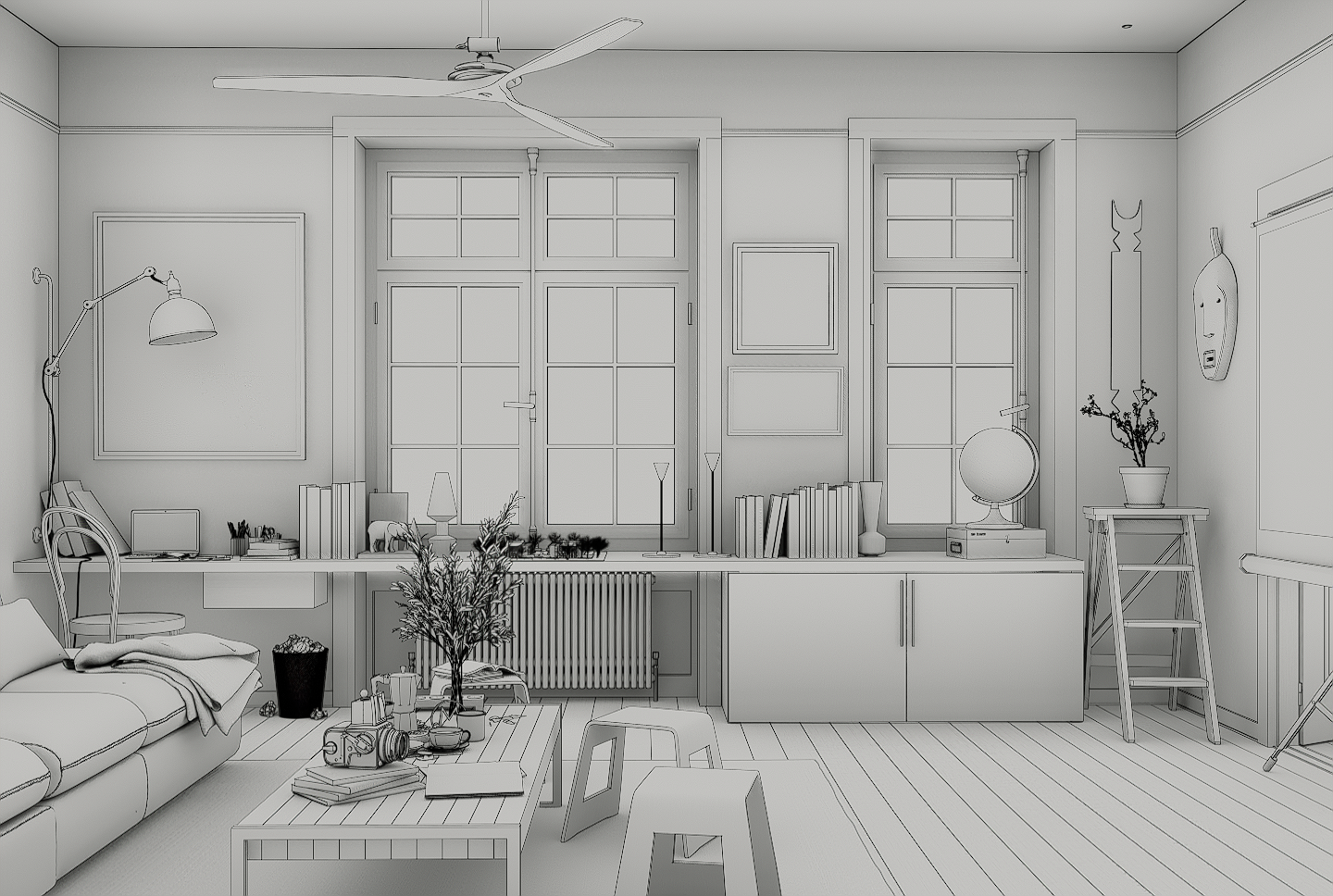
What is Ambient Occlusion(AO)?
Ambient Occlusion (AO) is a terminology in computational graphics. Generally speaking, it refers to technology that enables the renderer to present a more realistic light effect for your work by simulating indirect lighting and diffuse reflections in real life.
D5 Render enables Ambient Occlusion in both preview and rendering.
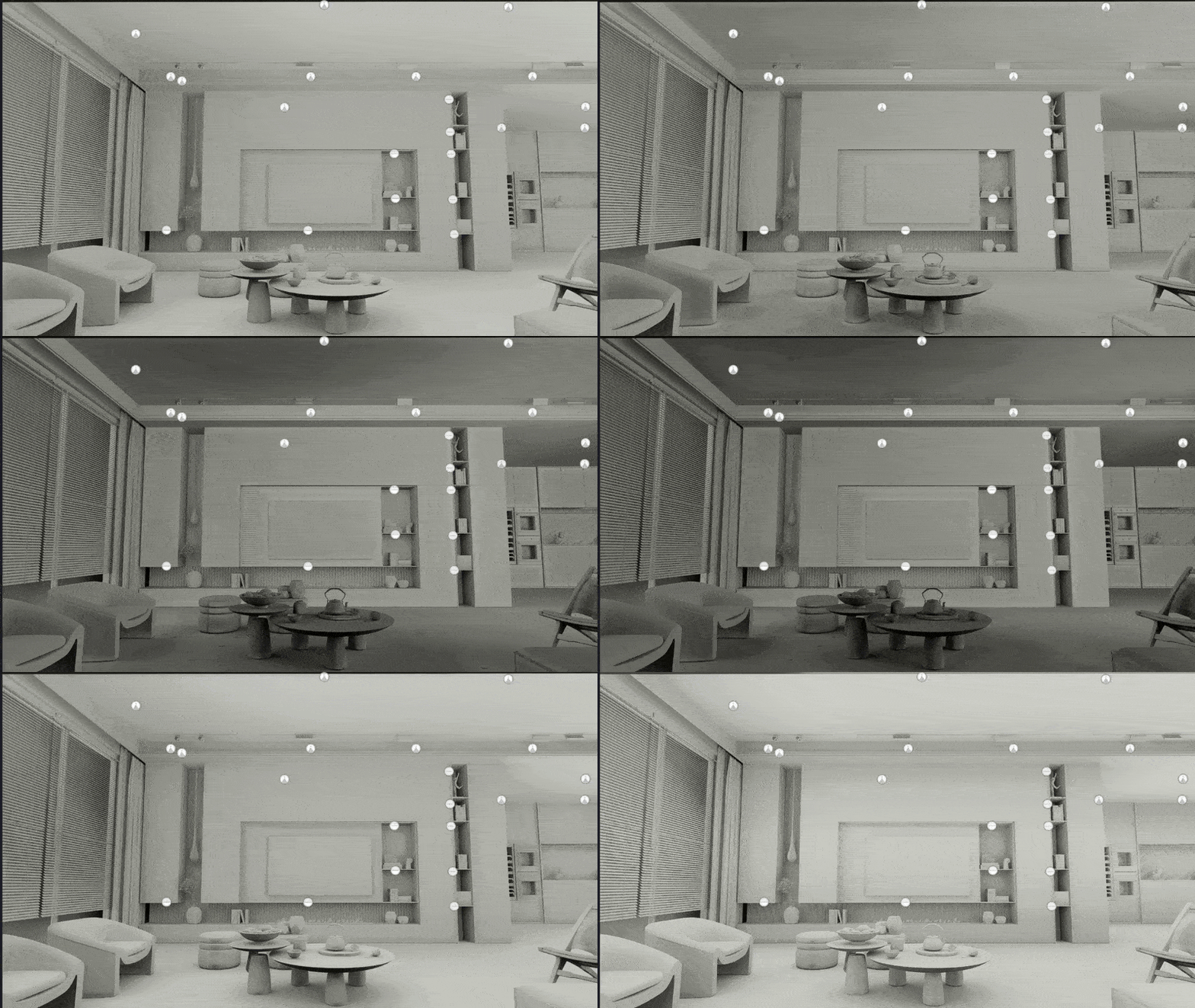
You can switch on “AO” in the effect panel and adjust its Radius to control the extent to which a location on the surface is obscured from surrounding light sources.
La pregunta está vacía. Por favor, introduce un texto para traducirlo.
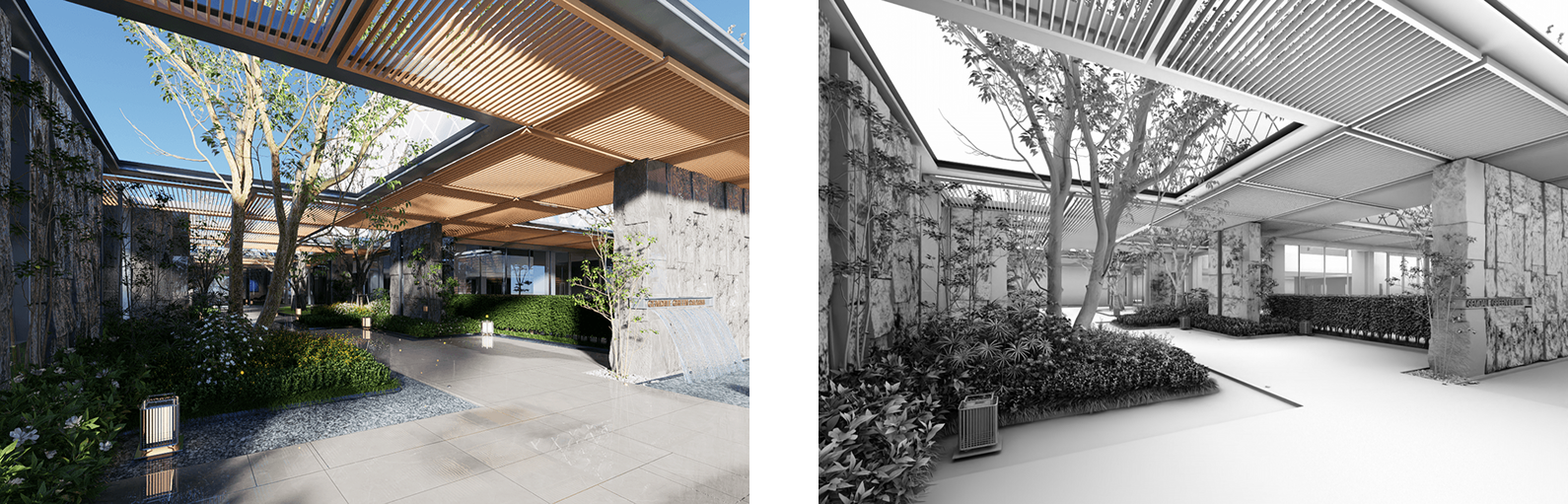
You can also output images with the AO map to check the light and shadow info.
Download the free scene file on D5 Forum
How to use Ambient Occlusion?
1. Use the AO map to enhance the details of light and shadow
AO maps help enhance the shadows in a scene. Visualizers usually use the AO map in Photoshop to produce a more realistic light-and-shadow contrast.
To output an AO map in D5 Render, go to Image Render > Channels and check “AO”.
2. Use the AO rendering mode as a VFX
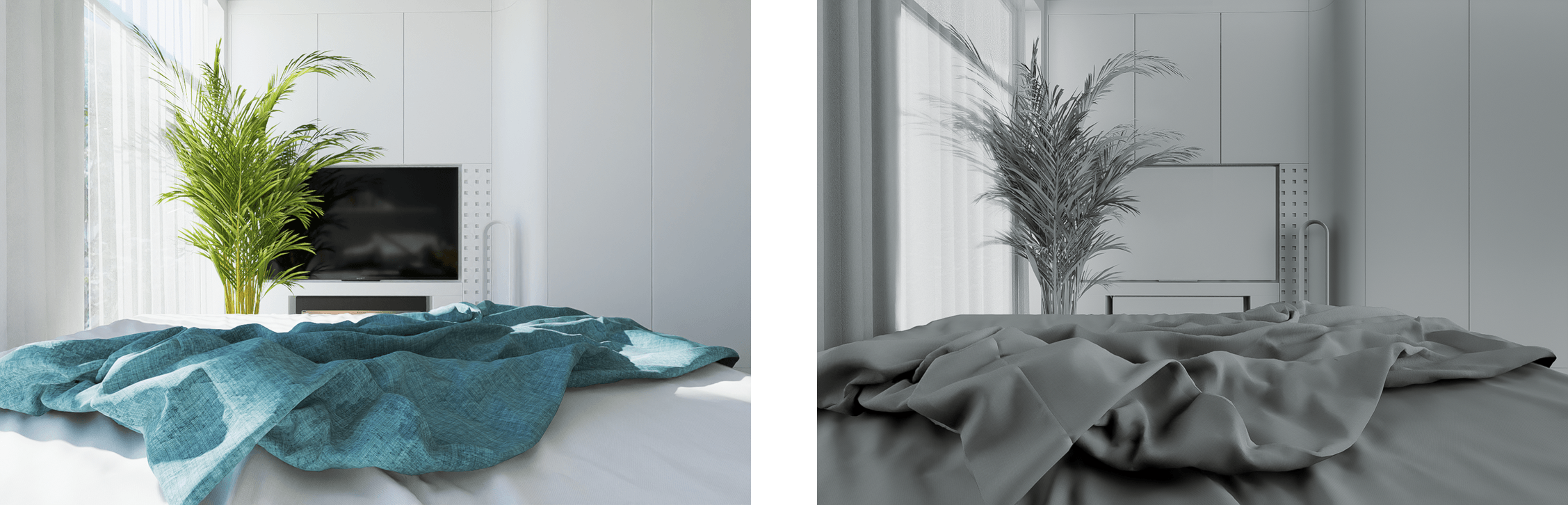
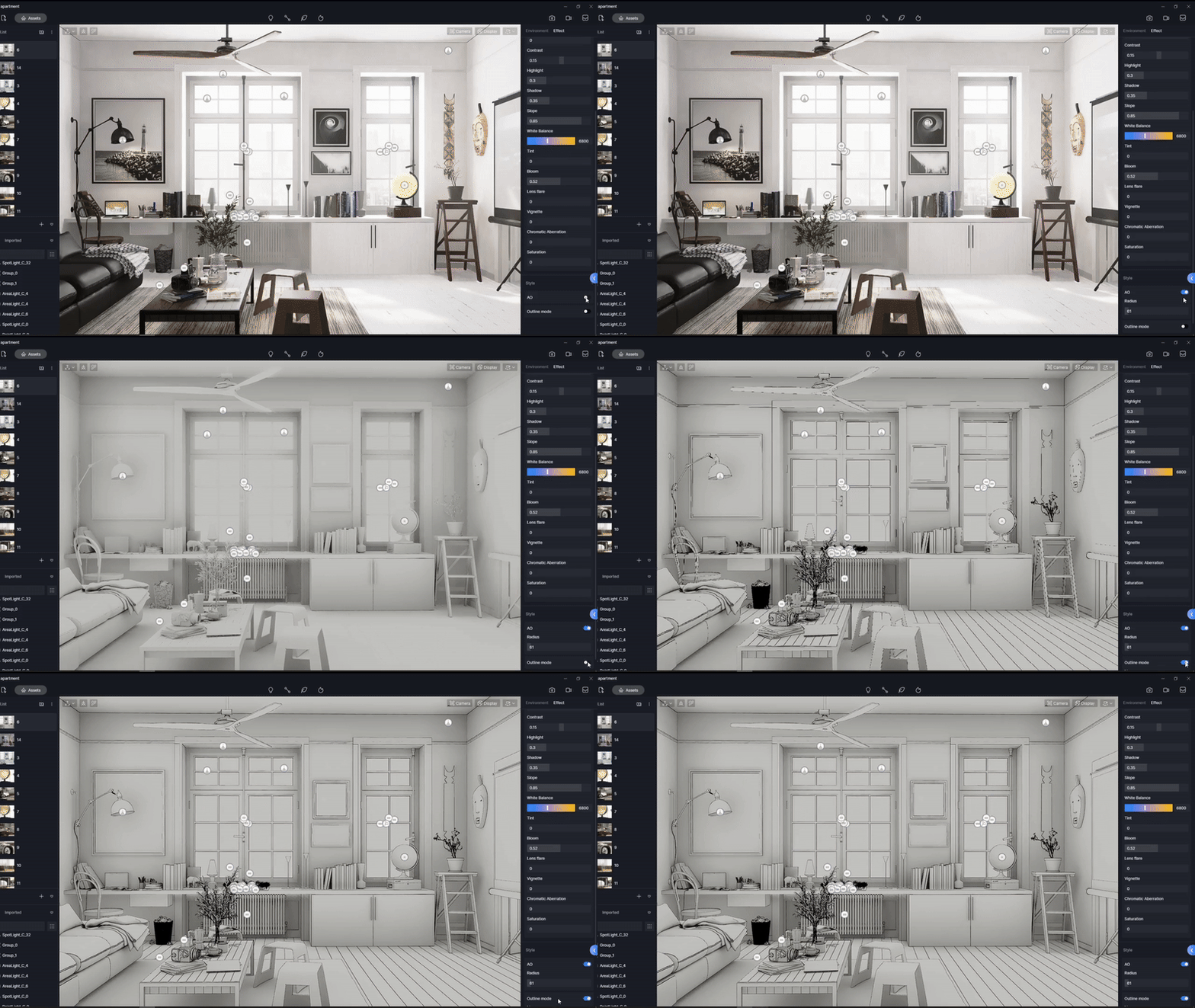
With D5 Render, AO can be a way of stylizing your work as well. You can achieve a special visual effect by turning on the “AO” mode. If combined with “Outline” mode, the rendering effect would be stunning and impressive.
Download the free scene file on D5 Forum
To create a rendering like this, you should go to the “Effect” panel, scroll down and find the “Style” section where the switches of AO and Outline modes are located.
The larger the Radius of AO, the wider the dark area will be.
La pregunta está vacía. Por favor, introduce un texto para traducirlo.

 English
 Español
 Français
 한국어
한국어 日本語
日本語