
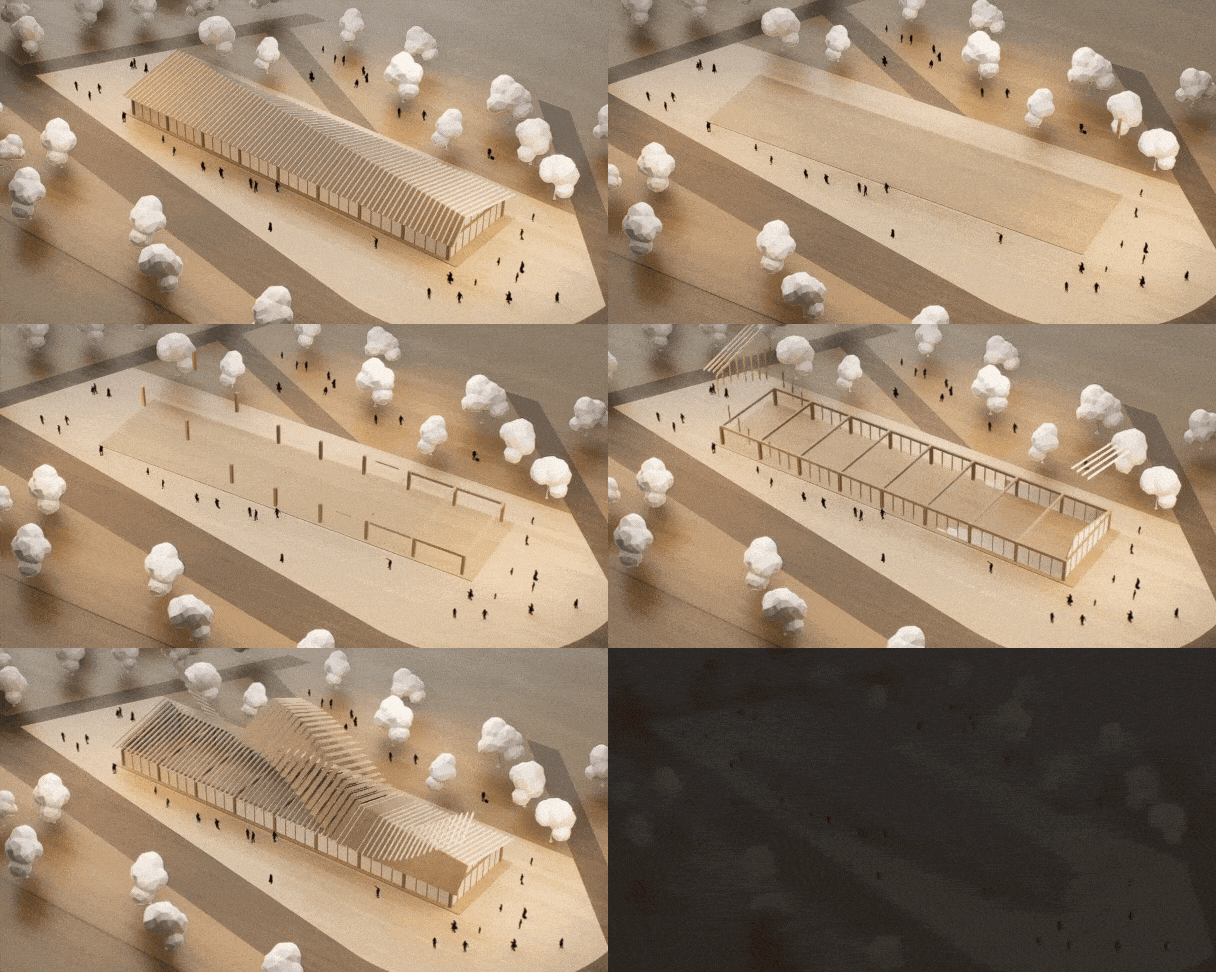
Creating professional-grade visualizations has never been easier. With D5 Render 2.9, the Animation de déphasage feature takes center stage, simplifying complex workflows and enabling dynamic, visually engaging presentations. Whether you’re demonstrating a product’s design process, analyzing an architectural structure, or visualizing landscape growth, this tool is here to revolutionize how you tell your story. Let’s explore everything you need to know to master this feature and bring your ideas to life.
Make sure you read this tutorial, try this feature and participate in our 100% PRO-winning D5 Phasing Animation Challenge. Cliquez ici to learn more about the challenge.
Bonjour
What is Phasing Animation?
Bonjour
Bonjour
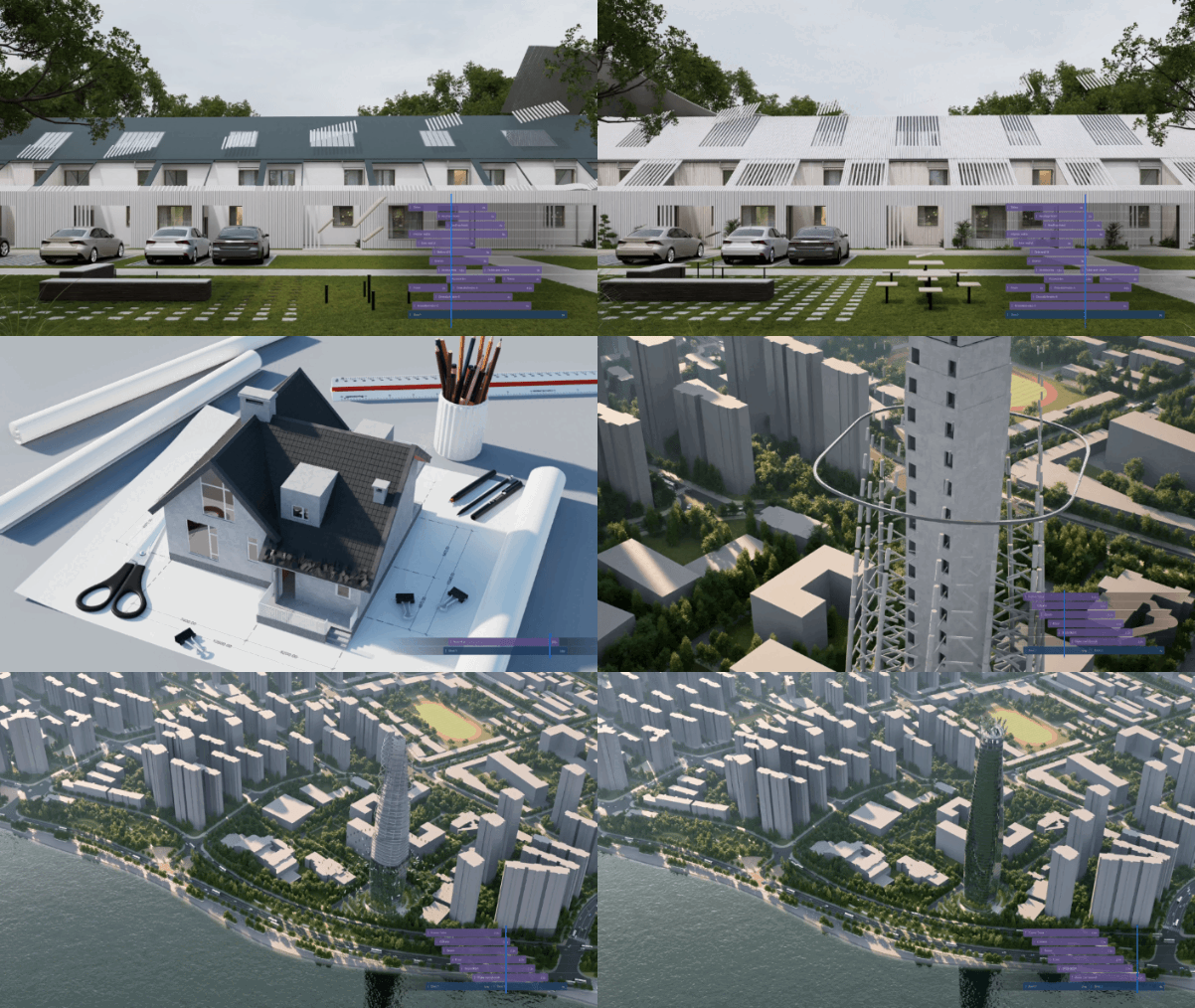
Phasing Animation is a powerful feature designed to streamline animation creation. By eliminating the need for intricate parameter adjustments, it empowers you to produce stunning results with minimal effort. The applications are vast, ranging from:
- Product Demonstrations: Highlight step-by-step processes or features.
- Structural Development: Showcase construction stages or material layering.
- Architectural Analysis: Present designs in a detailed, phased manner.
- Component Installation: Animate assembly or installation steps.
- Vegetation Growth: Bring natural elements to life by simulating growth phases.
Now, let’s dive deeper into the steps involved in creating these animations.
Bonjour
Getting Started: Preparing for Phasing Animation
Creating a seamless animation begins with proper preparation. For this, you’ll need two essential tools:
- SketchUp (or another supported modeling platform).
- D5 Render SketchUp Plugin, which connects your modeling software to D5 Render.
To start, download the SketchUp plugin from the official D5 Render website. Before moving forward, make sure your models are well-organized into groups ou components. This structure is crucial for smooth functionality during export and import processes.
Bonjour
Step 1: Exporting Models from DCC Software
The first step in creating phasing animations is exporting your models from the digital content creation (DCC) software using the D5 Live Sync plugin. Here’s how to do it, tailored for each supported platform.
Bonjour
For SketchUp
Bonjour
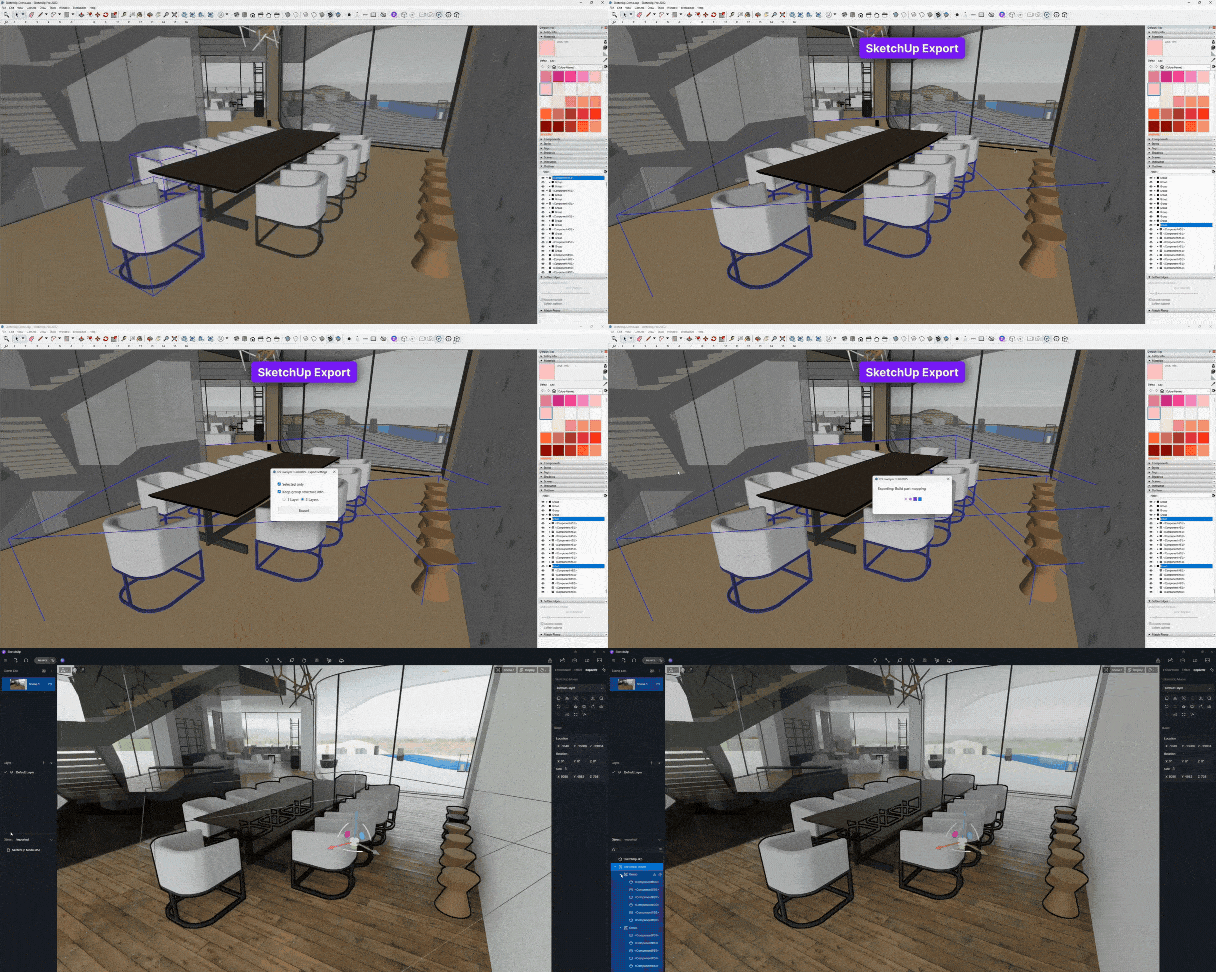
- Organize your models into separate groups (e.g., chairs, stools).
- Select these groups and click the Group Export button, ensuring the structure depth is set to two layers.
- Once exported, your model will retain its organized structure when imported into D5.
Bonjour
For Rhino
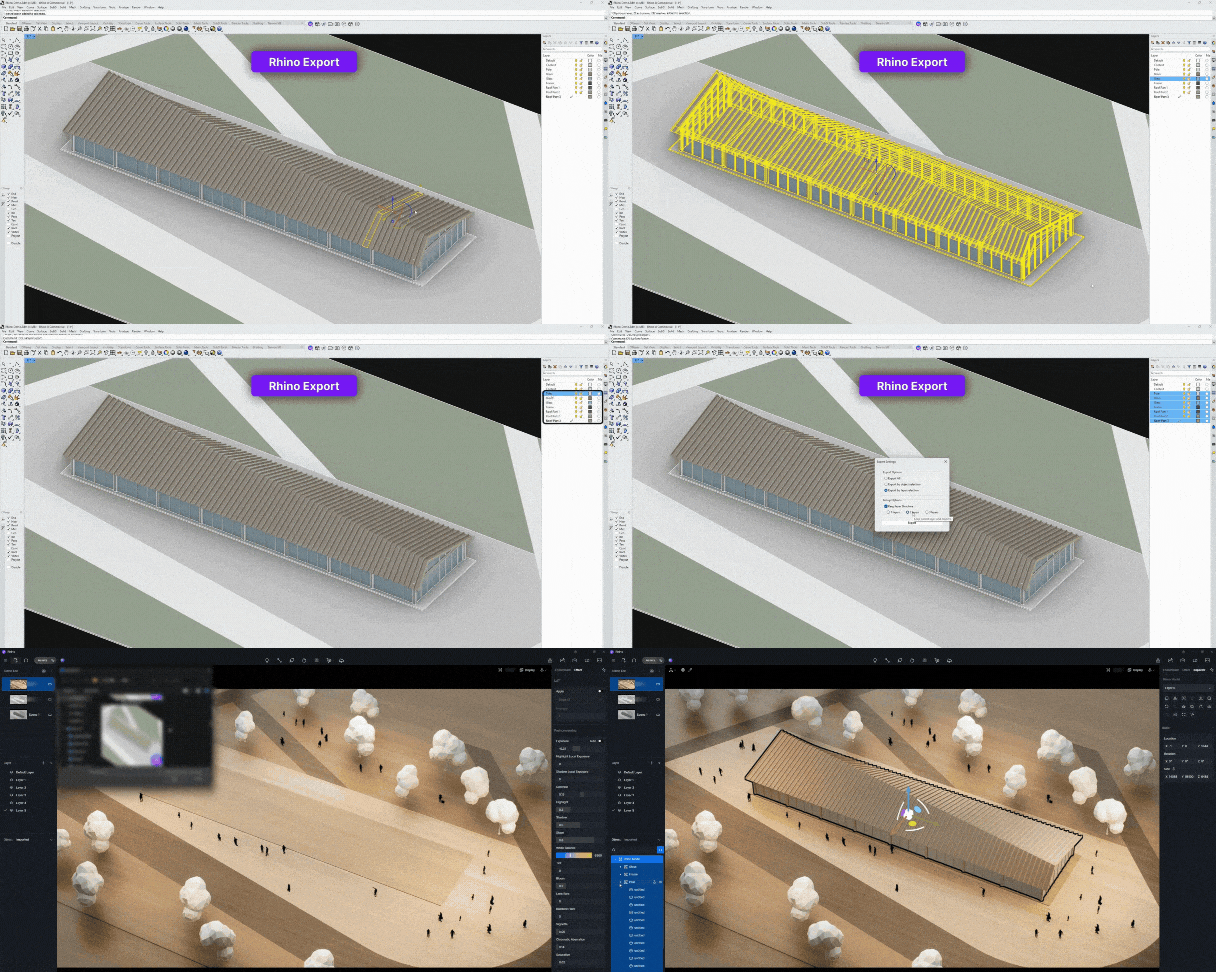
- Categorize model components into distinct layers.
- Choose an export method:
- By Object Selection for specific elements.
- By Layer Selection for entire categories.
- Set the retained structure depth and export. The model will then appear in D5 Render organized by Rhino layers.
Bonjour
For 3ds Max
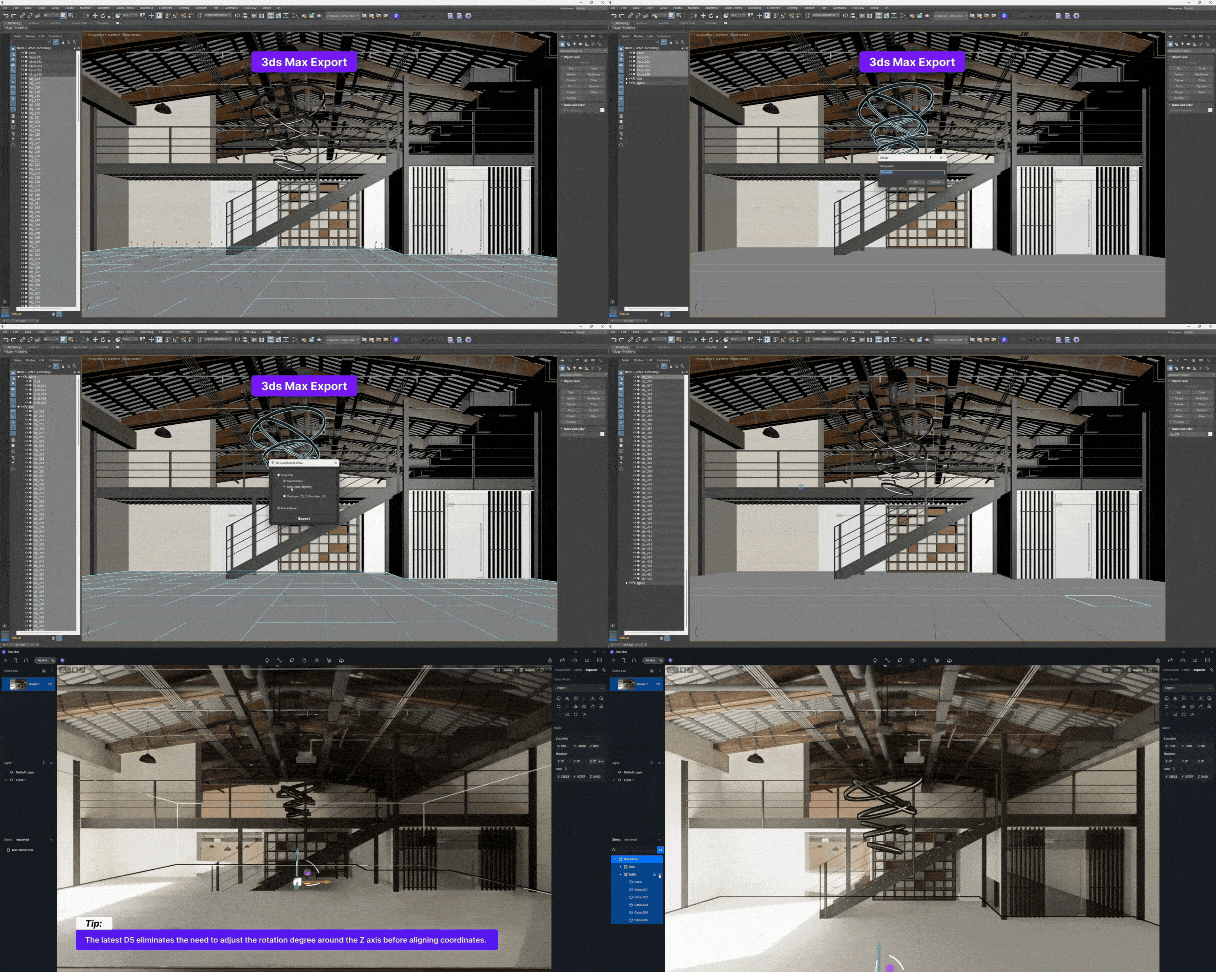
- Similar to SketchUp, group related elements (e.g., tiles, pendant lights).
- Use the Export button, selecting “Selected Only,” and set the hierarchy depth to two layers.
- Your structured model will seamlessly transfer into D5.
Bonjour
For Revit
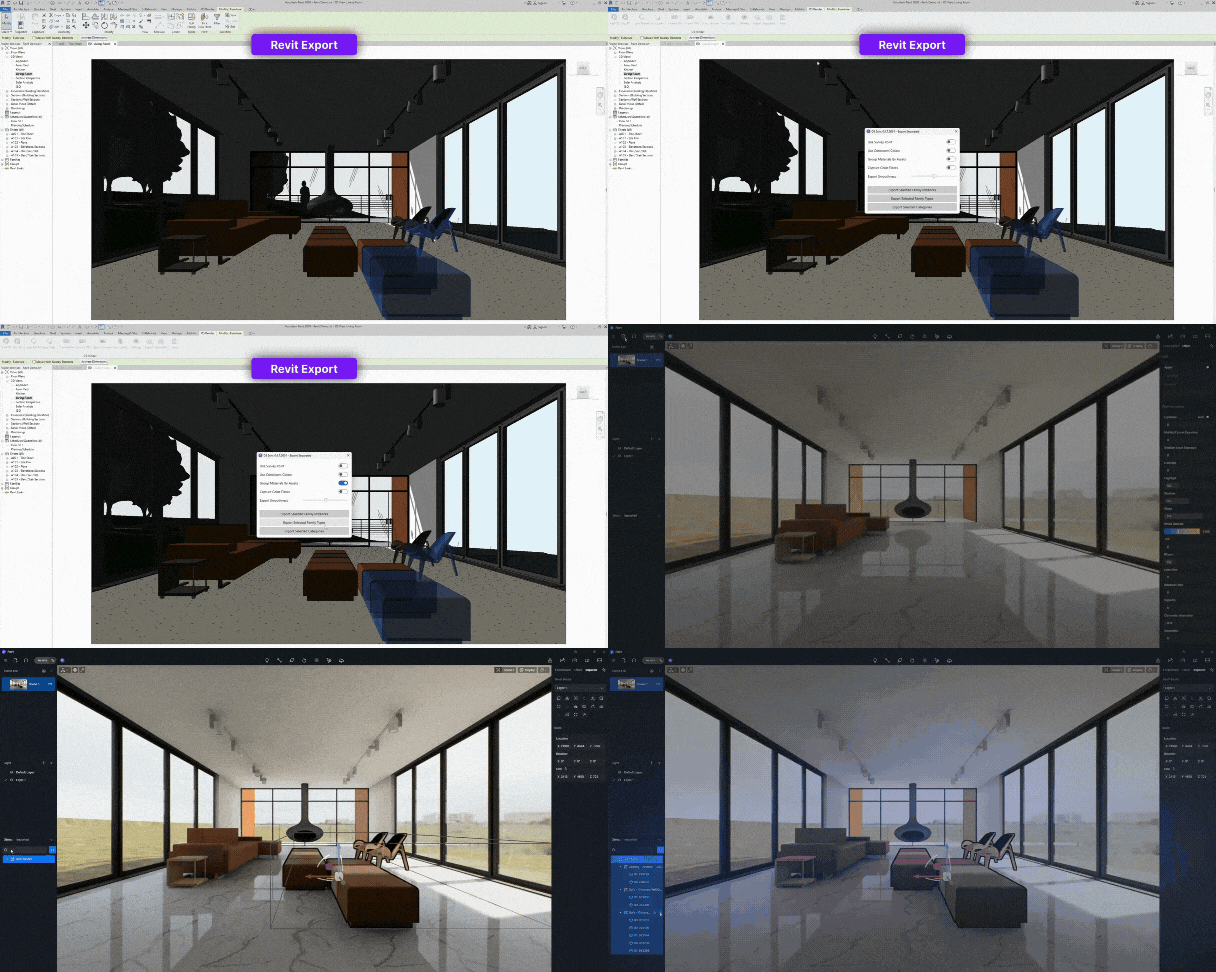
- Select objects individually or use options like Export Selected Family Types ou Export Selected Categories.
- Import the neatly categorized model into D5 Render.
With the export complete, the next step is importing your models into D5 Render and breathing life into them with animations.
Bonjour
Step 2: Importing and Setting Up in D5 Render
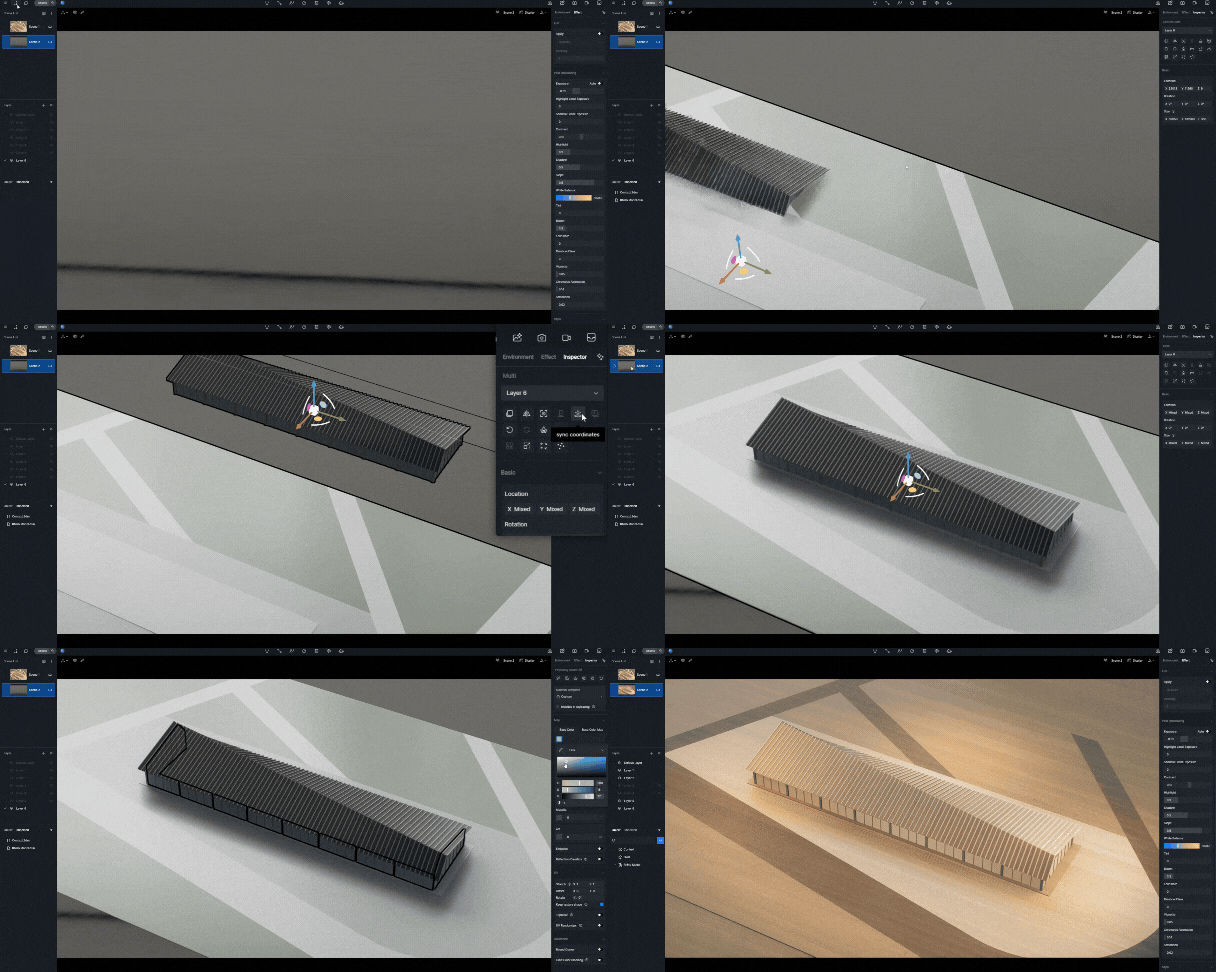
Once your models are ready, bring them into D5 Render to set the stage for your animation.
- Import Models: Open a blank D5 worksheet and import your exported models.
- Align Coordinates: Use the sync function to align all site and building components.
- Enhance Visuals: Quickly apply textures and materials to your models. Add landscape features for outdoor spaces to create a richer, more compelling scene.
With the groundwork set, you’re ready to explore the animation template panel.
Bonjour
Step 3: Creating the Animation
Phasing animation in D5 is as intuitive as it is powerful. Follow these steps to create your animation:
- Access the Template Panel: Click the video button in the top-right corner to access animation templates. Preview each effect through dynamic thumbnails.
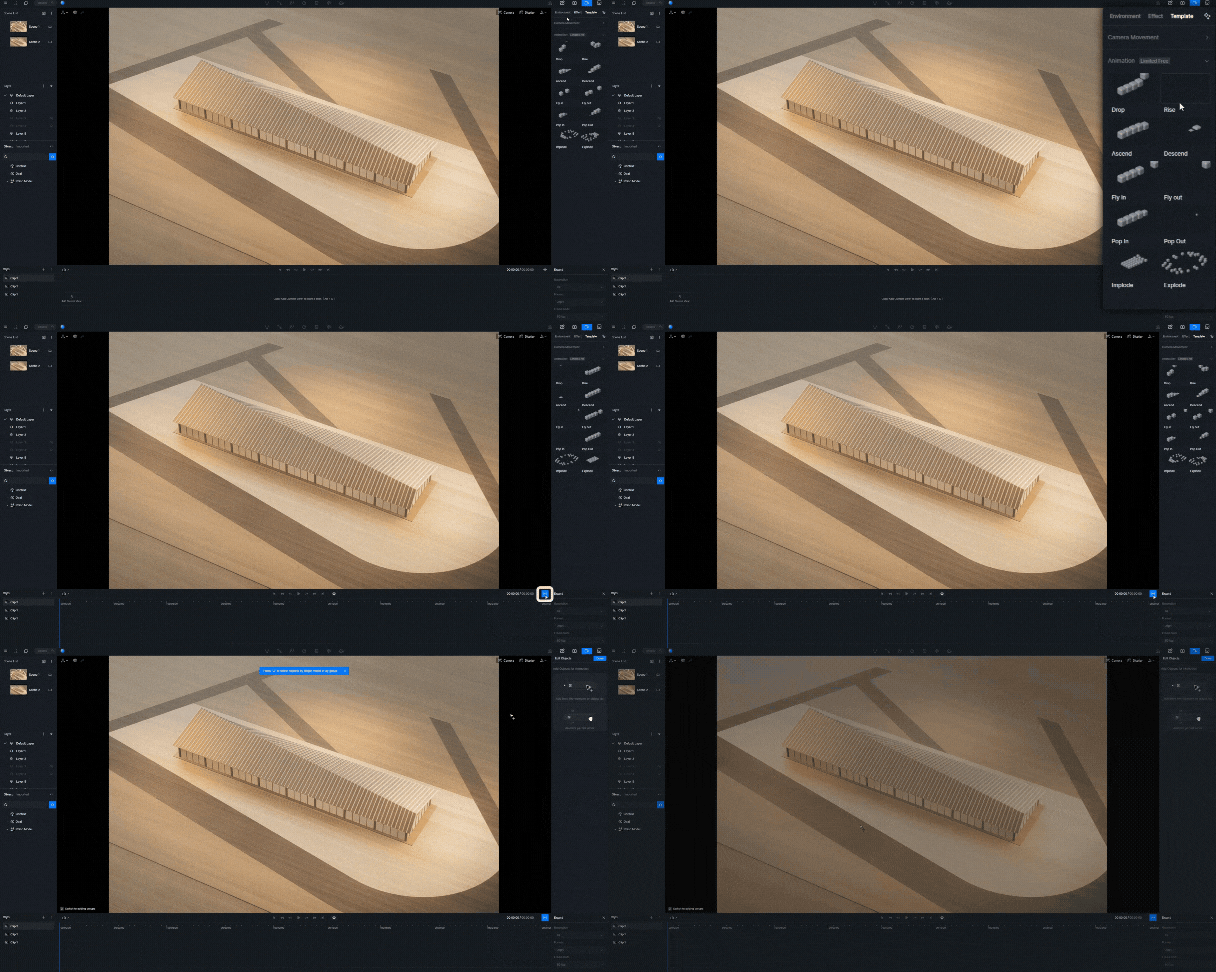
- Select Objects: Choose models manually or use batch selection for efficiency. Grouping objects simplifies this process and keeps everything organized.
- Adjust Timelines: Extend or shorten the animation duration as needed, or input a precise value. Rename, duplicate, or relocate animation segments to fine-tune your timeline.
Bonjour
Step 4: Adding Sequence and Effects
Bring an extra layer of polish to your animation by carefully managing sequences and effects.
Sequence Management
- Reorder objects easily by dragging and dropping them in the object panel.
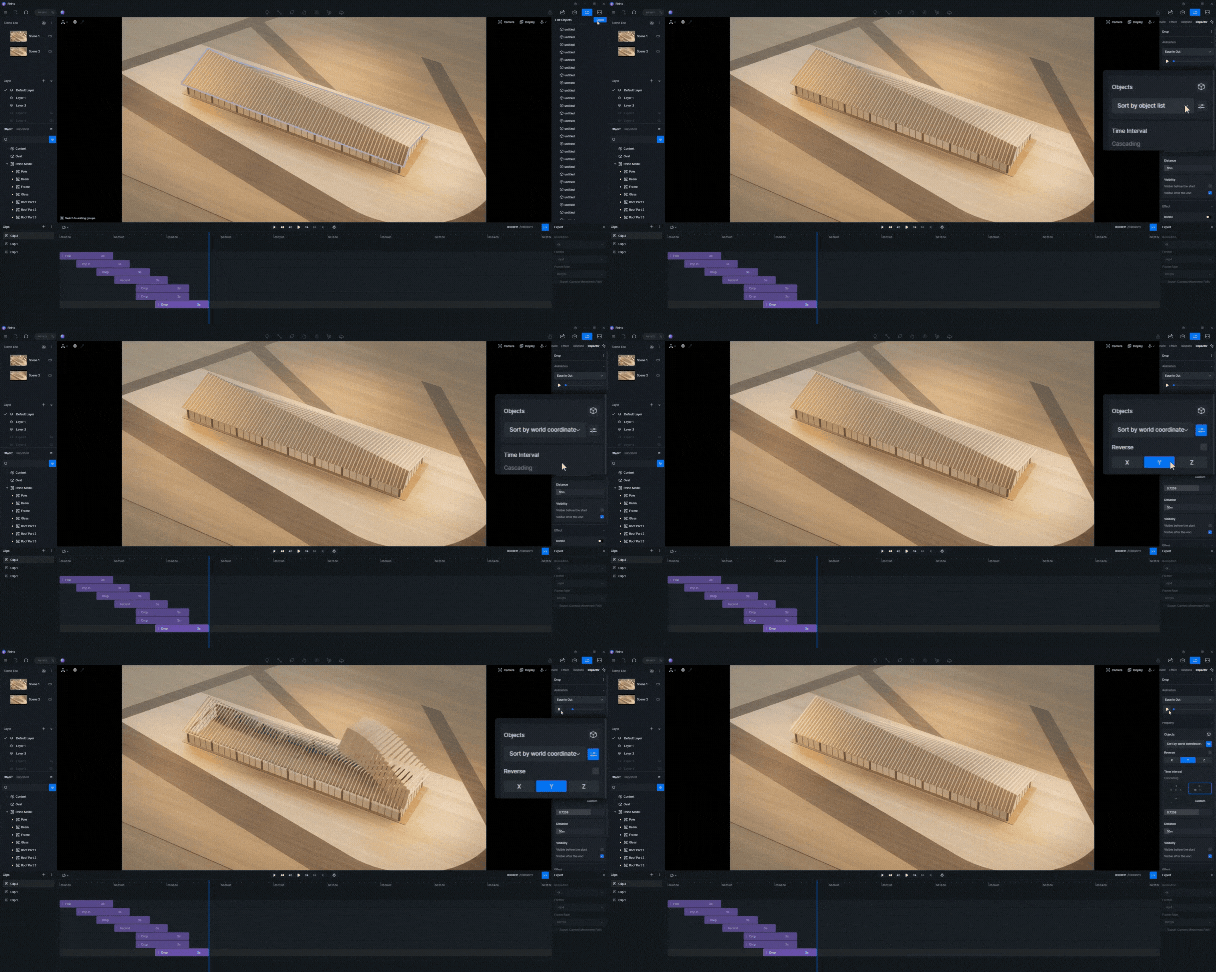
- For larger projects, use the Auto Sort feature to arrange elements based on world coordinates or axes.
Time Interval Effects
Choose from three unique effects:
- Simultaneous: All objects appear at once.
- Cascading: Objects flow smoothly in sequence.
- Sequential: Objects appear one after another for a step-by-step effect.
Real-time previews let you adjust time intervals and perfect your animation.
Bonjour
Step 5: Enhancing the Animation
Animations can be elevated with additional enhancements like rotation and scaling effects.
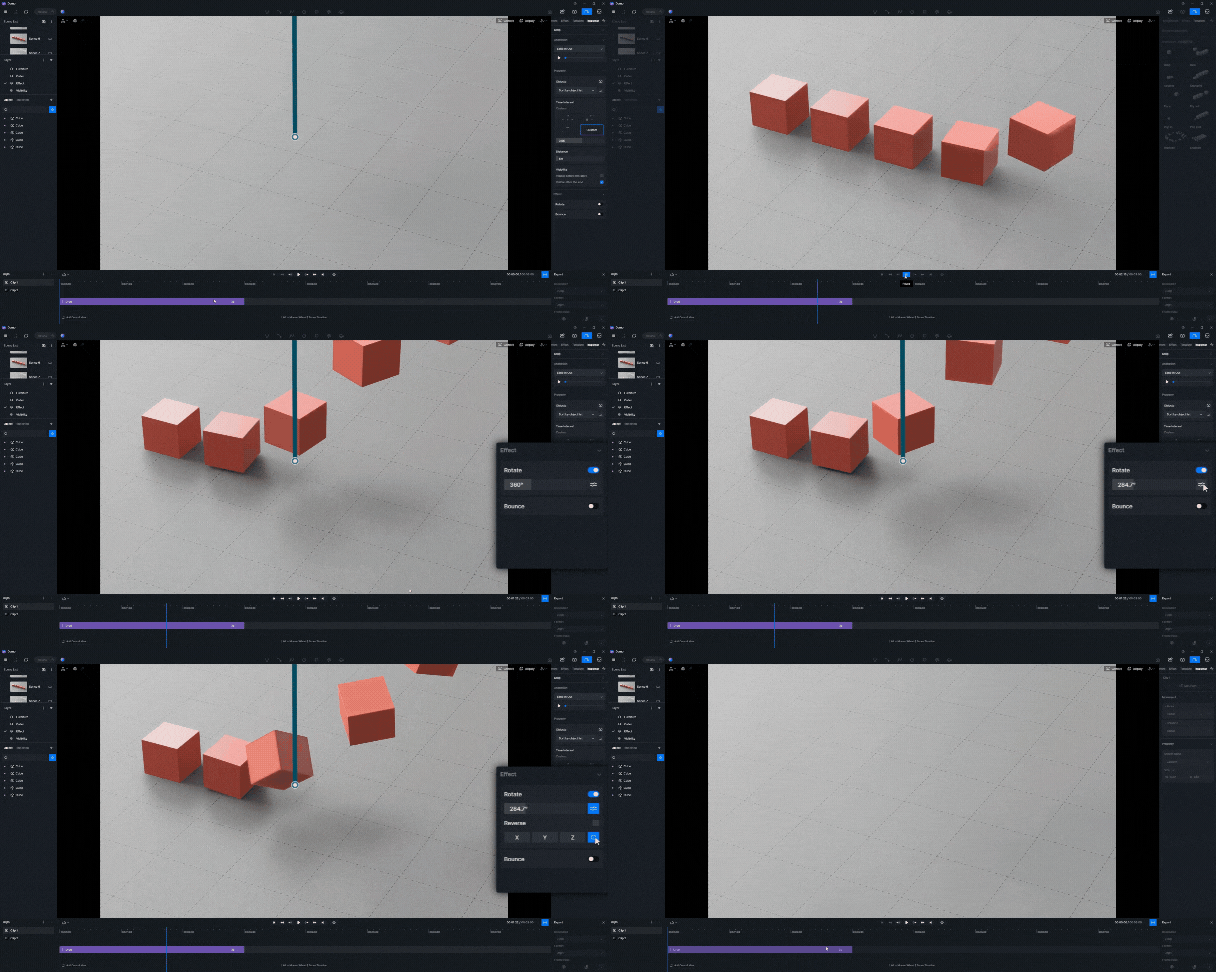
- Rotation: Add rotational motion to objects, adjusting degrees and axes or applying random effects.
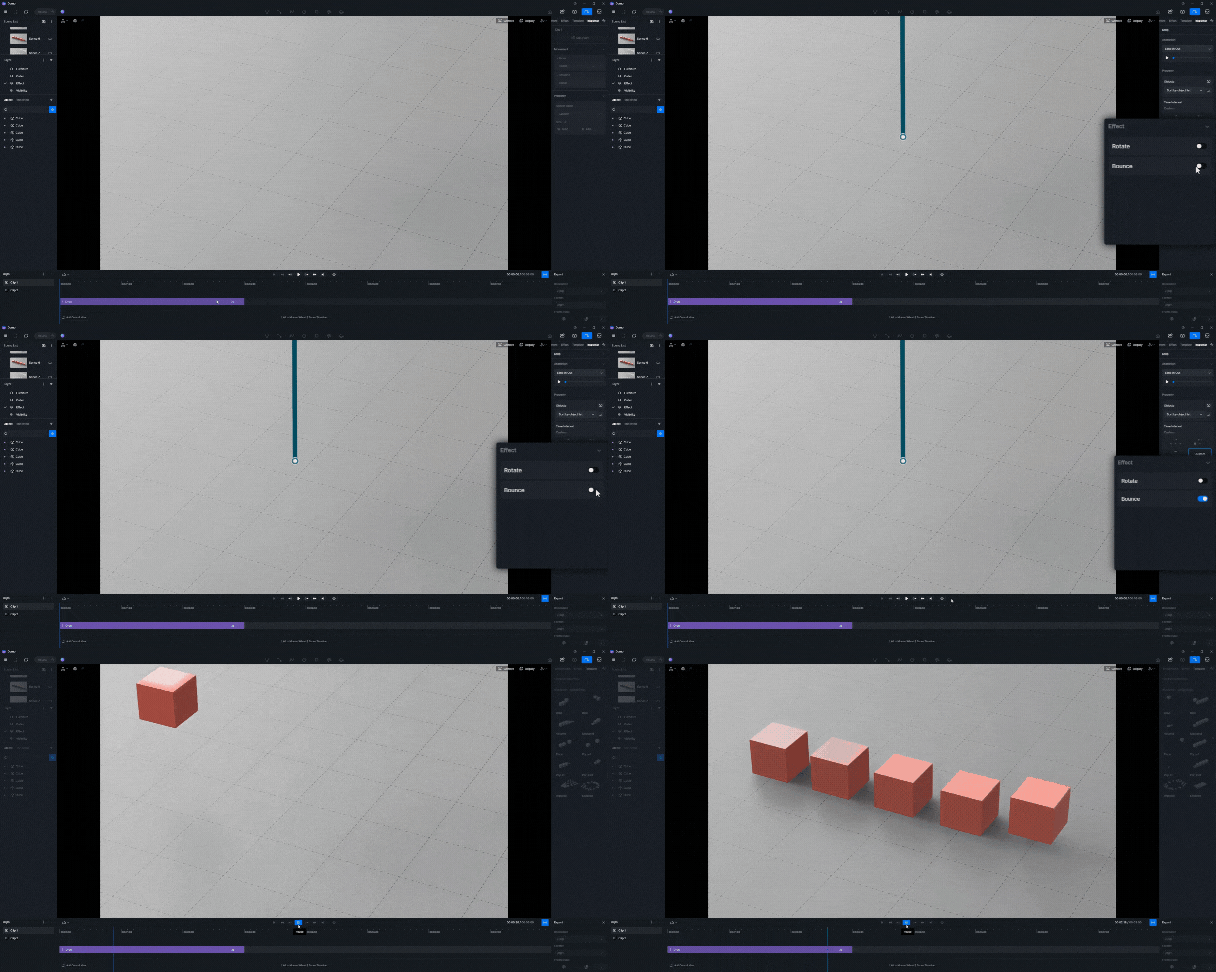
- Scale Bounce: Enable rapid scaling for objects, adding dynamic energy to your animation.
These effects make animations visually captivating and engaging.
Bonjour
Tips for a More Engaging Animation
- Ajouter landscape features or environmental elements to create depth and realism.
- Adjust camera settings to frame your scenes perfectly.
- Leverage D5 Render’s user-friendly interface to iterate quickly and refine your work.
Bonjour
Conclusion
Phasing Animation in D5 Render 2.9 empowers users to create stunning visualizations with ease. By following these steps, you can craft animations that tell compelling stories, whether for product demonstrations, architectural analysis, or creative design projects. Explore the endless possibilities this tool offers, and bring your ideas to life with precision and creativity.


 English
 Español
 Français
 한국어
한국어 日本語
日本語