
Revolutionizing architectural visualization, D5 Render‘s AI texture generator bridges speed and realism through intelligent automation. This tool transforms basic inputs into PBR-compliant 4K materials within seconds, eliminating tedious manual adjustments while preserving ray-traced accuracy. Discover how D5’s integrated AI workflows empower designers to achieve studio-grade results faster than traditional methods now!
Key Takeaways on AI Texture Generators in D5 Render
- D5’s integrated AI texture generator eliminates fragmented workflows by combining material creation and PBR controls within one real-time environment.
- It ensures physically accurate, client-ready results with AI-synchronized texture maps and seamless 4K upscaling, avoiding standalone tools’ limitations.
- Designers achieve hyper-realistic materials faster through automated PBR map generation, instant previews, and in-app refinement—freeing focus for creativity.

1. Why AI Texture Generators Matter in Rendering & Design Visualization
In today’s fast-paced architectural visualization industry, the demand for both speed and precision has never been higher. Clients now expect hyper-realistic renderings delivered quickly, making AI texture generators indispensable tools. These generators automate the creation of complex material surfaces, from weathered concrete to detailed wood grains, significantly reducing the hours of manual work traditionally required.
At the heart of this technology is the need for Physically Based Rendering (PBR) compliance. AI-generated textures must accurately simulate real-world light interactions to ensure ray-traced accuracy. Failure to meet these standards can result in materials that appear flat or inconsistent under varying lighting conditions, undermining the overall realism of the render.
D5 Render distinguishes itself in this landscape with its integrated AI texture generator, which streamlines material creation by combining AI efficiency with PBR precision. By eliminating the need for standalone tools and offering real-time previews, D5 empowers designers to focus on creativity rather than technical adjustments — proving that smart automation is transforming architectural workflows.
2. The Limitations of Standalone AI Texture Generator
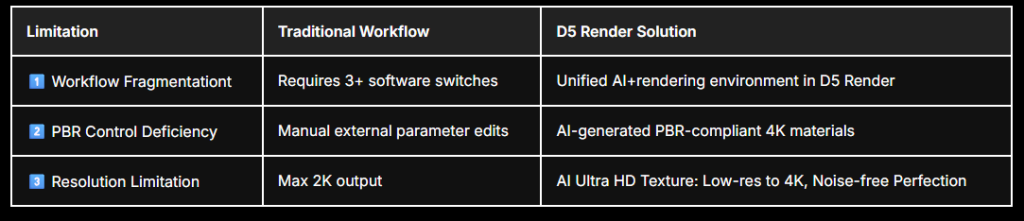
Standalone AI texture tools force architects into fragmented workflows, requiring constant platform-switching that breeds version control chaos and tedious export-import loops.
Their core limitation? No native PBR parameter controls. Designers must manually tweak roughness/metallic values in external editors — a process that degrades ray-traced accuracy and forces approximations of real-world material behavior.
Resolution ceilings compound these flaws: most tools max out at 2K outputs that pixelate under scrutiny. D5 Render’s AI 울트라 HD 텍스처(AI Ultra HD Texture) feature breaks this barrier, upscaling textures to 4K while preserving ultra-HD clarity — non-negotiable for client-ready architectural visualizations where material fidelity makes or breaks realism.
By merging AI texture generation with in-engine PBR controls, D5 Render eliminates these compromises, letting teams refine materials in real time without leaving the render environment.
Refer to the table below to explore D5 Render’s solutions ▼
3. AI-Generated Material Texture Maps in D5 Render: Precision Meets Efficiency
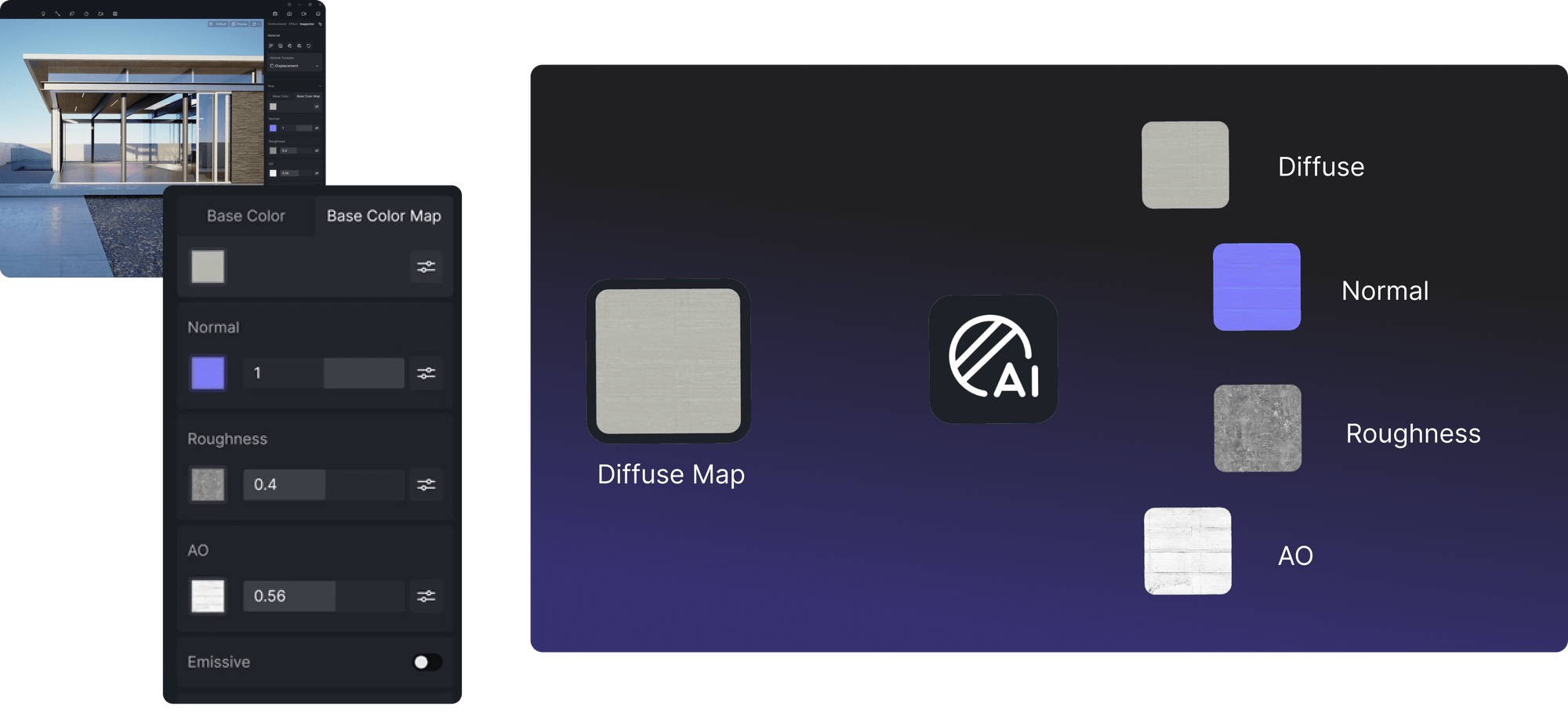
D5 Render‘s AI-generated material texture maps streamline traditional workflows by integrating procedural generation with physically accurate PBR controls. This ensures that all texture channels—such as normal, roughness, and height—are synchronized, maintaining ray-traced realism without the need for manual adjustment of each map separately, as is often required with standalone AI tools. By combining AI capabilities with real-time rendering, D5 Render enables architects to iterate on materials more efficiently within a single environment, reducing the complexity of back-and-forth exports and enhancing overall productivity.
4. Step-by-Step Guide to AI-Generated Material Texture Maps in D5 Render
Step1: Select the Target Material
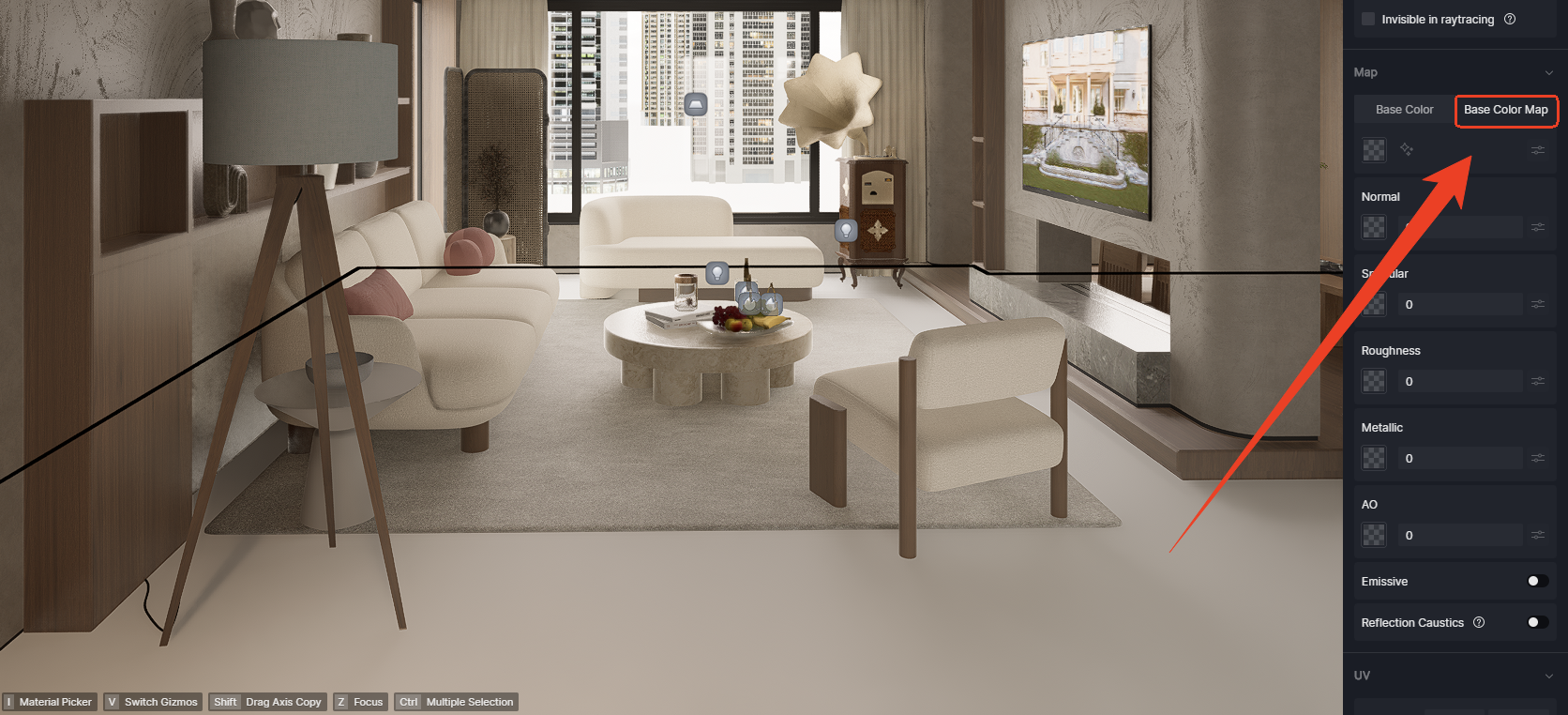
Begin by opening your D5 Render scene and selecting the object with the material you wish to optimize (e.g., select the floor model in the example scene below▼). Navigate to the Material Editor panel via the right-hand toolbar and choose the ‘Base Color Map’.
Step2: Import Base Textures
Drag and drop a base color texture (e.g., diffuse/albedo map) in supported formats (PNG, JPEG, etc.) into the Base Color slot. If the initial texture resolution appears low, you can refine it later using D5 Render’s AI-powered enhancement tools (AI Ultra HD Texture). So donât hesitateâgo ahead and experiment!
참고: This feature is not supported on materials from D5 Library.
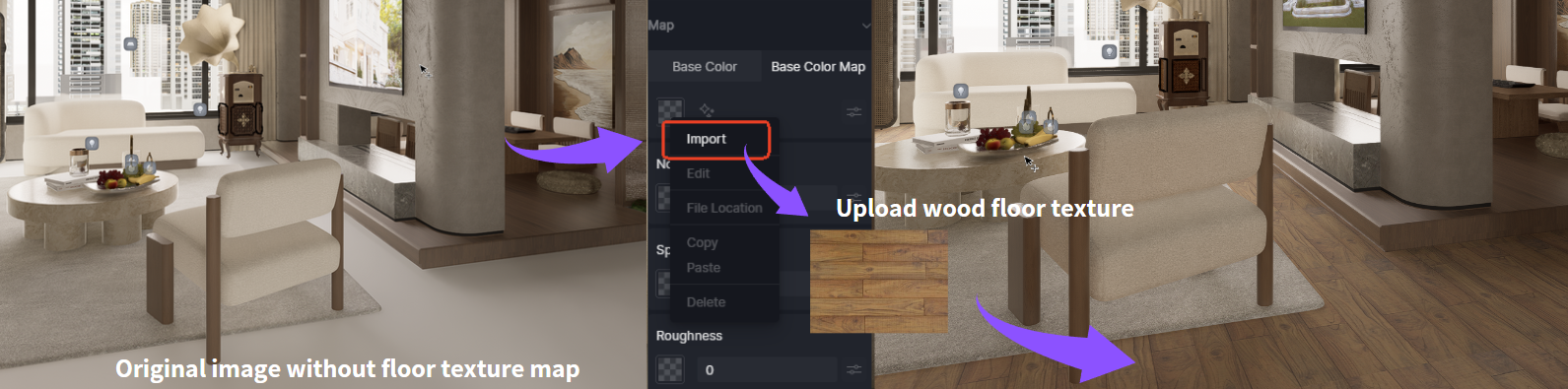
Step3: Initiate D5 Render’s AI-Generated Material Texture Maps
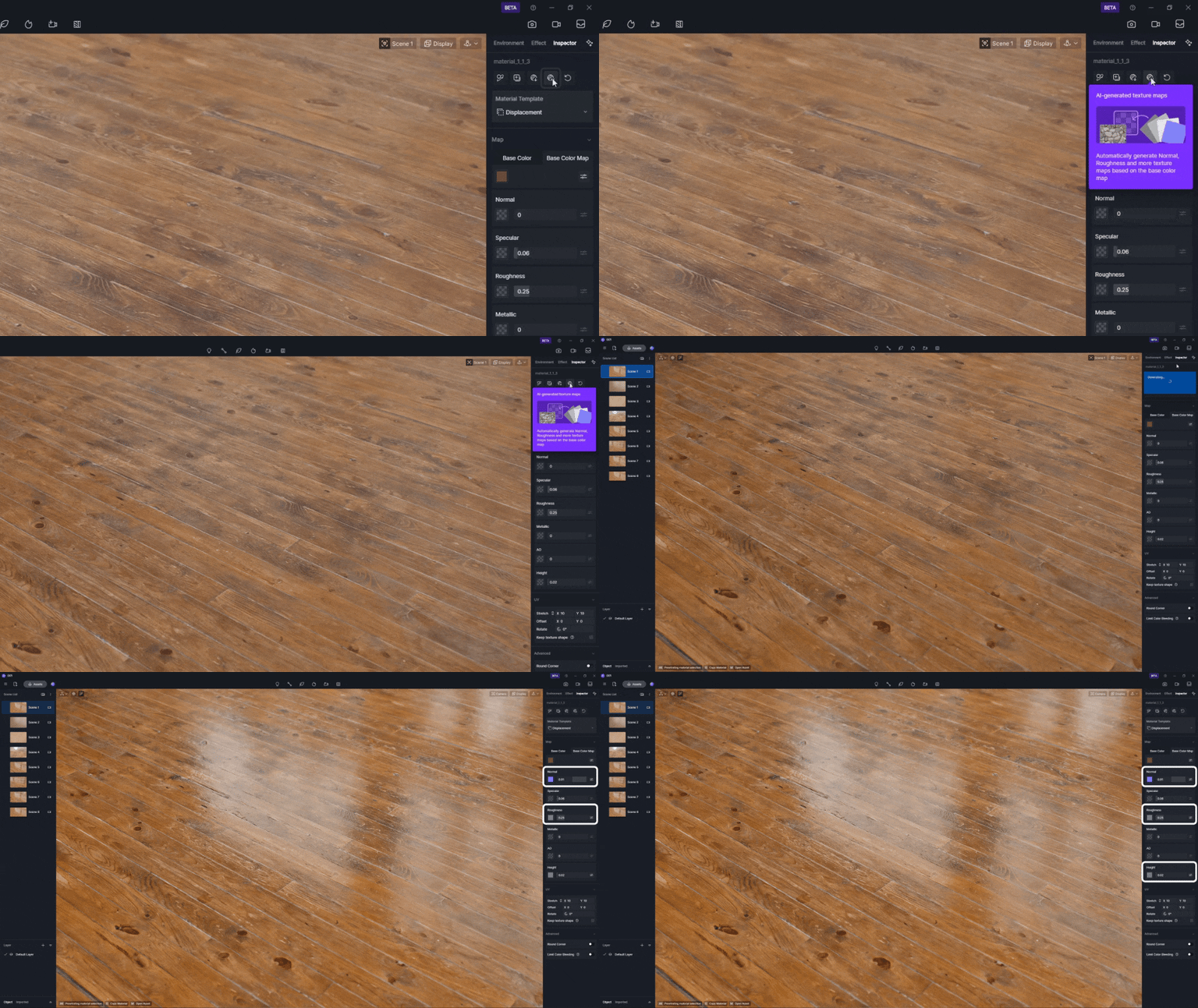
Locate the AI-Generated Material Texture Maps button (Refer to the step-by-step diagram below). Clicking this activates D5’s proprietary algorithm, which:
- Automatically analyzes your base texture’s properties (color, pattern, and structural characteristics).
- Automatically generates PBR texture maps (Normal, Roughness, Displacement etc.) while preserving material accuracy.
- Processes in seconds with real-time previews, maintaining lighting consistency.
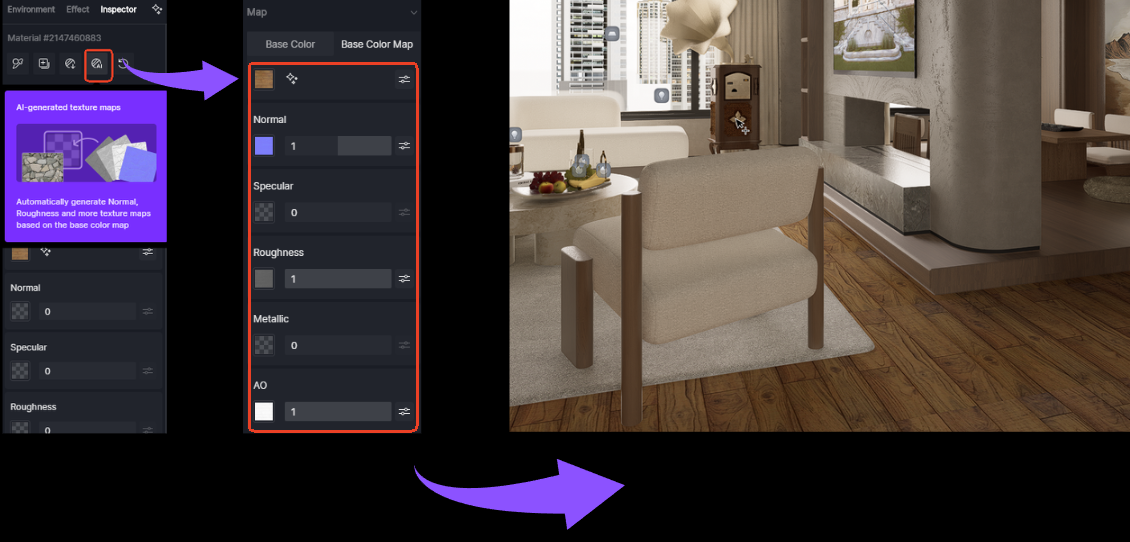
Step4: Adjust in Real-Time
If the AI-generated material slightly deviates from your vision, manually refine Normal, Roughness, or Displacement maps within D5 Render’s Material Editor. Utilize real-time ray-traced previews to instantly assess how adjustments interact with scene lighting and surrounding geometry, eliminating trial-and-error and rendering delays.
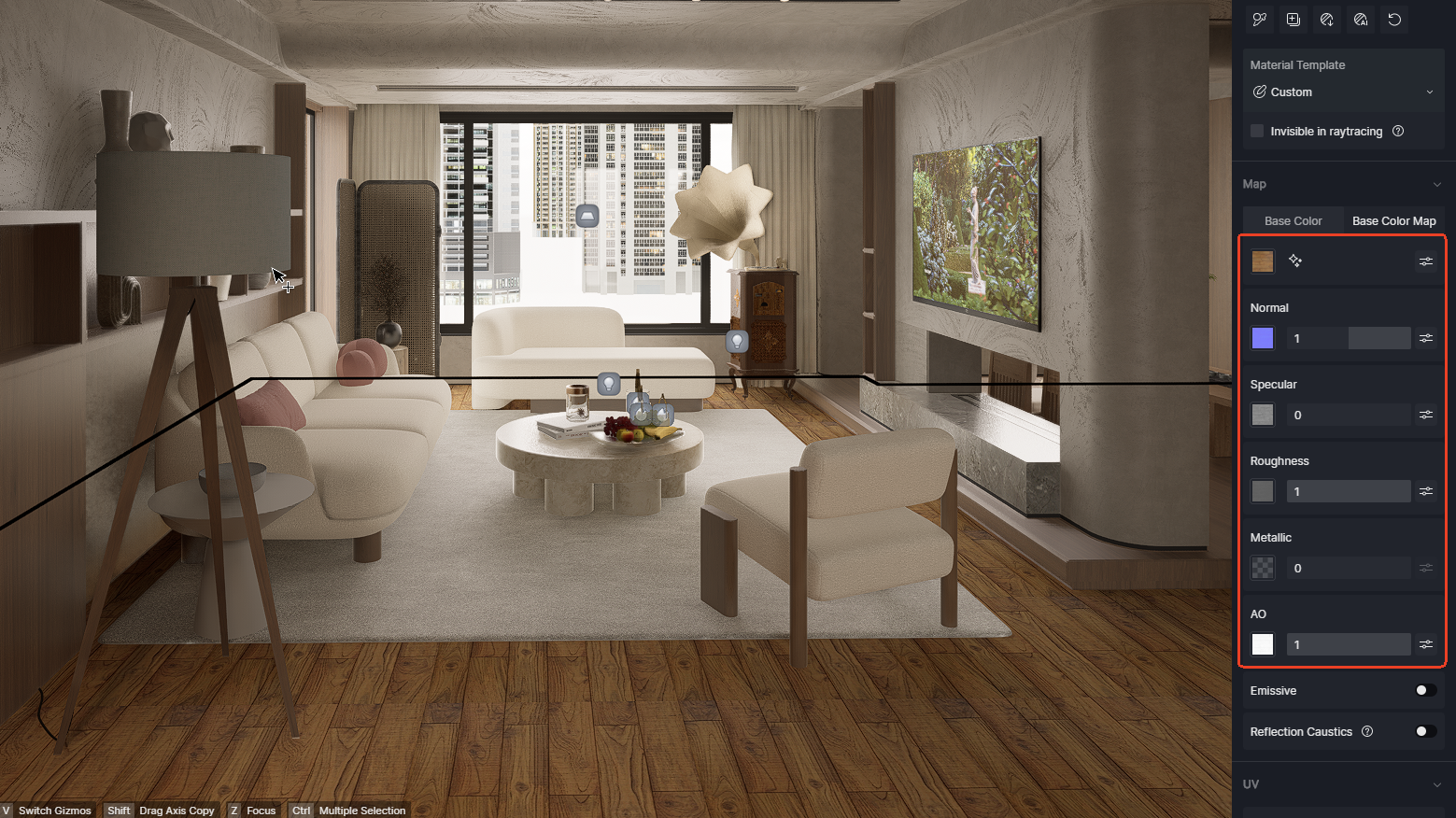
Step5: Optimizing Material Details
If you notice unnatural seam blending in floor gaps or insufficient texture clarity, activate D5 Render’s AI 틈새 제거 (Make Seamless) 그리고 AI 울트라 HD 텍스처(AI Ultra HD Texture) features to resolve alignment issues and boost detail sharpness. Fine-tune parameters with real-time preview for optimal visual coherence.
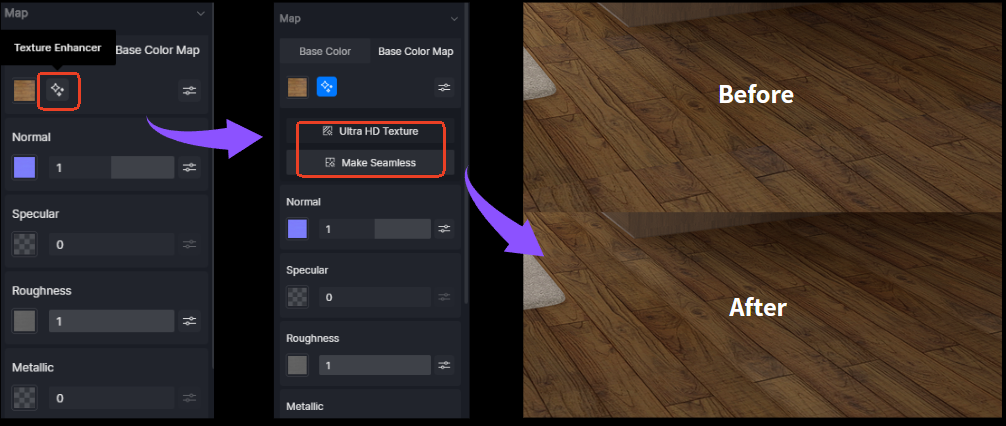
By following these steps, D5 Render’s AI tools transform basic textures into photorealistic materials, seamlessly integrated with your scene’s lighting and geometry for professional-grade visual fidelity.
5. Beyond Seamlessness: D5 Render’s AI-Powered Material Ecosystem
Modern architectural visualization requires tools that bridge artistic creativity and technical precision. D5 Render’s AI ecosystem addresses this need through some integrated features, each solving specific industry challenges while maintaining PBR compliance.
5.1 AI Make Seamless
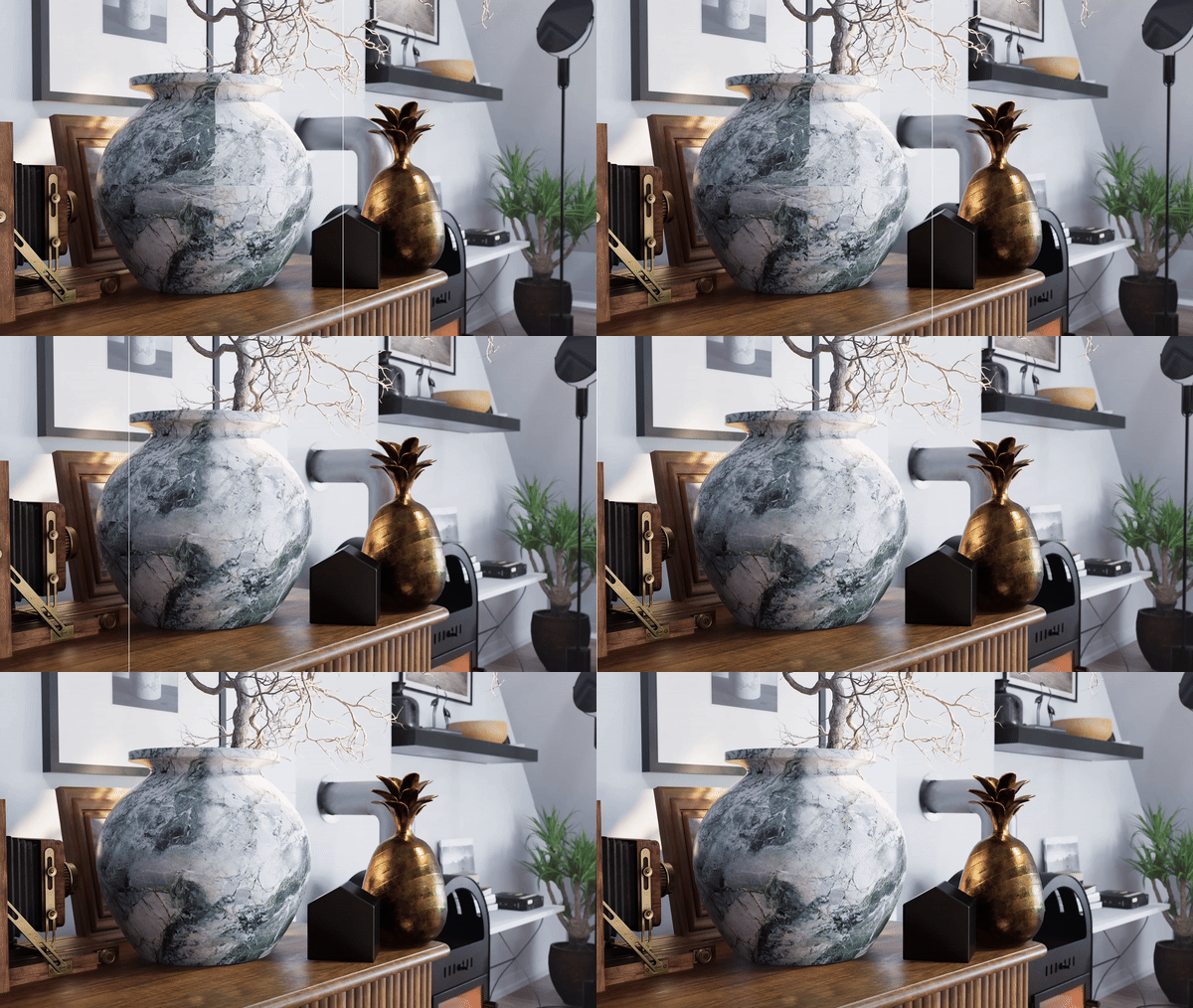
Tiling artifacts and mismatched seams disrupt even high-quality textures. D5의 AI 틈새 제거 (Make Seamless) analyzes texture patterns and extends edges intelligently, preserving PBR properties like roughness and metallic values. Unlike standalone tools that may distort material behavior, D5 Render ensures adjustments align with real-world light interactions—critical for ray-traced accuracy.
5.2 AI Ultra HD Texture
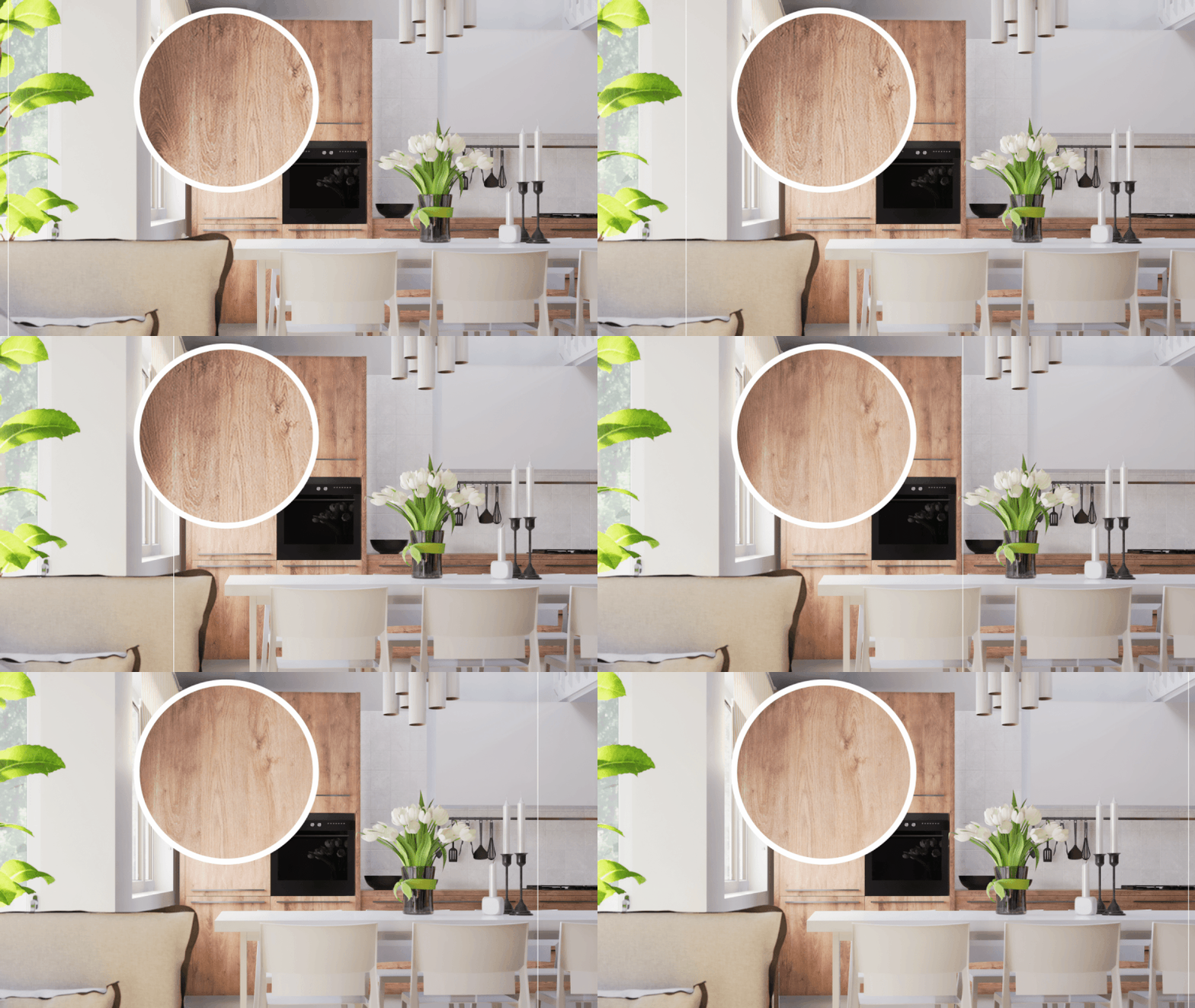
D5’s AI Ultra HD Texture enhancement transforms low-resolution source images into crisp 4K textures while preserving critical details. This proves invaluable when working with limited reference photos or legacy assets. Designers can now upscale a 1K/2K texture to 4K after applying seamless tiling, ensuring both resolution and continuity meet professional standards.
How to use AI Ultra HD Texture? | User Manual >
5.3 AI Atmosphere Match
D5 Render의 AI 분위기 매치(AI Atmosphere Match) adjusts scene lighting and environmental tones based on reference images, ensuring cohesive visuals, like matching dusk lighting without manual color grading. It complements material details, focusing on overall scene atmosphere.
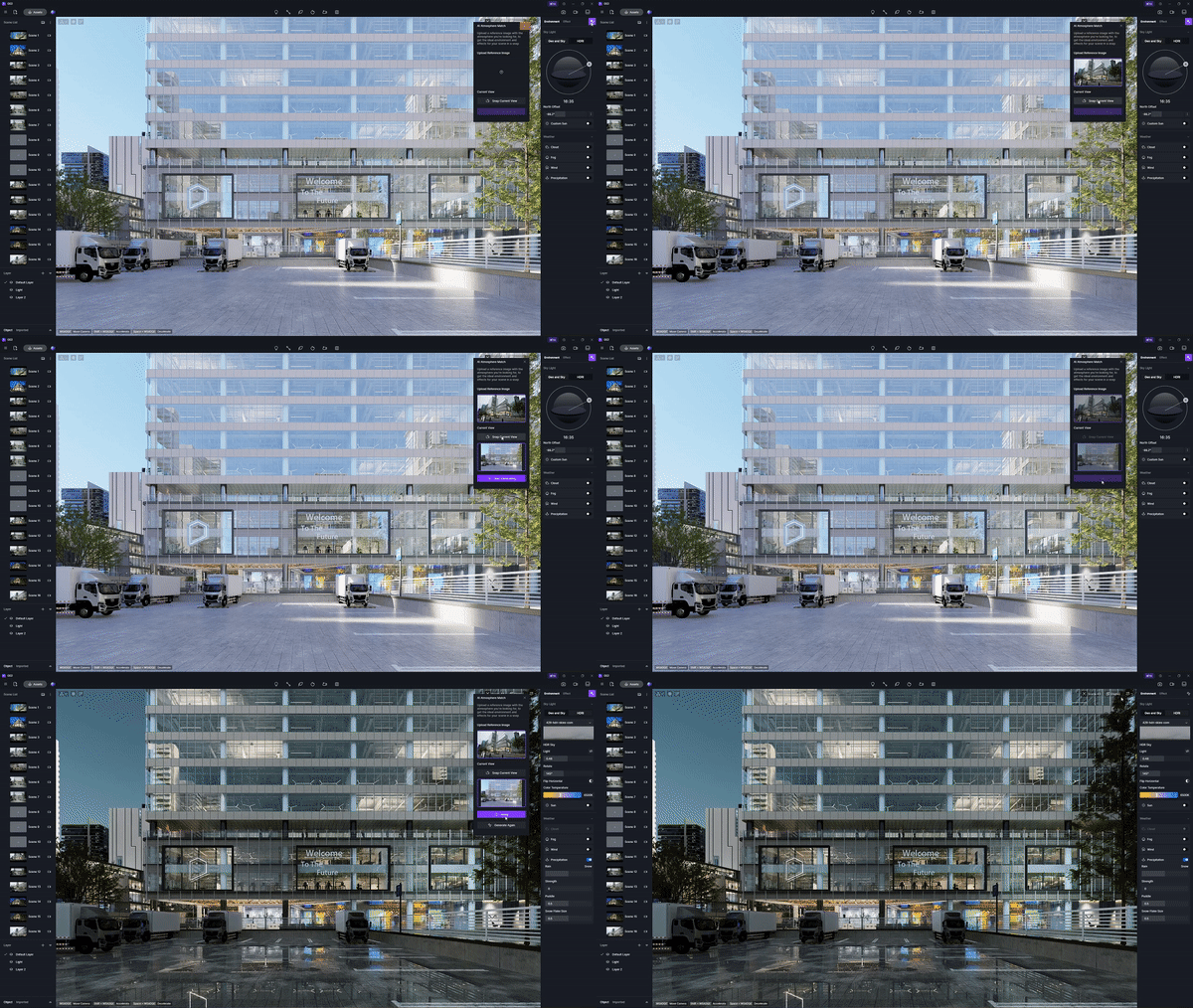
By integrating these AI tools into a unified real-time workflow, D5 reduces reliance on fragmented standalone solutions. The ecosystem empowers artists to experiment creatively while maintaining technical accuracy, ensuring artistic styles and environmental matches don’t compromise material realism.
6. Conclusion on D5 Render’s AI Texture Generator
D5 Render‘s AI texture generator redefines material creation by merging neural networks with PBR precision. By eliminating workflow fragmentation and resolution compromises, it delivers client-ready 4K textures that maintain ray-traced accuracy—all within a unified rendering environment. Architects now wield an intelligent tool that automates tedious map generation while preserving creative control through real-time adjustments. As visualization demands intensify, D5 proves AI isn’t just about speed; it’s about elevating quality while respecting the physics of light. The future of architectural storytelling begins where AI efficiency meets rendering authenticity.
더 많은 D5 Render를 살펴보기 위해 계속 읽기 AI 기능
최고의 SketchUp 워크플로 해킹: D5 Render에서 AI 마스터하기
AI에 생명을 불어넣다: 레노버 워크스테이션 360 이벤트의 총정리
사실적인 ArchiCAD 시각화를 위한 D5 Render의 AI 기반 조명 마스터하기
FAQs on D5 Render‘s AI Texture Generator
1.Will low-res source images ruin my materials?
No! Activate AI 울트라 HD 텍스처(AI Ultra HD Texture) to upscale textures to crisp 4K while preserving details—ideal for client presentations where pixelation kills realism.
2.How do I fix visible seams in tiled textures?
클릭 AI 틈새 제거 (Make Seamless): it intelligently extends edges without distorting PBR properties like roughness, ensuring perfect pattern continuity.
3.Why do roughness values mismatch after AI generation?
Manually refine maps in D5’s Material Editor. Real-time ray-traced previews instantly show adjustments under actual lighting, eliminating guesswork.
4.Can I avoid switching software for PBR tweaks?
Yes! D5’s integrated environment lets you edit Normal/Roughness maps natively—no exports needed. Unified controls prevent version chaos.
5.What if AI-generated maps don’t match my vision?
Use real-time sliders to tweak displacement or roughness while previewing changes instantly. Iterate freely without rendering delays.
6.Does AI work with D5 Library materials?
No—these features require imported base textures (PNG/JPEG). Always start with your own albedo maps for AI processing.

 English
 Español
 Français
 한국어
한국어 日本語
日本語